Configuration and personalization
The configuration and personalization settings allow you to tailor your experience within the AI Incubator Project according to your preferences.
Personal settings
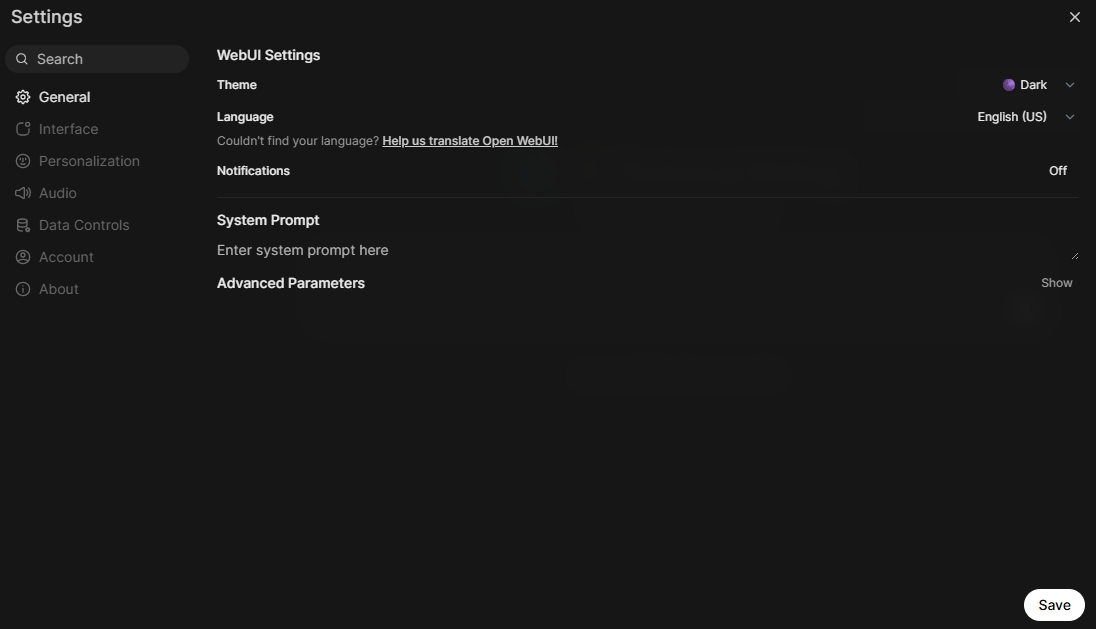
There are some personal settings which you can adapt by clicking on  in the top right corner and select
  .
.
| Icon | Description |
|---|---|
 |
Customize the appearance of the user interface, select your preferred language, and adjust system prompts. |
 |
Access detailed settings to modify the user interface according to your requirements. |
 |
Control interactions with Large Language Models (LLMs) by providing personal information for improved functionality and customization. |
 |
Configure Text-to-Speech (TTS) and Speech-to-Text (SST) settings, including voice selection. |
 |
Export, import, or delete chats as needed to manage your communication history. |
 |
Choose your name, gender, and birthdate to personalize your account. |
Notes
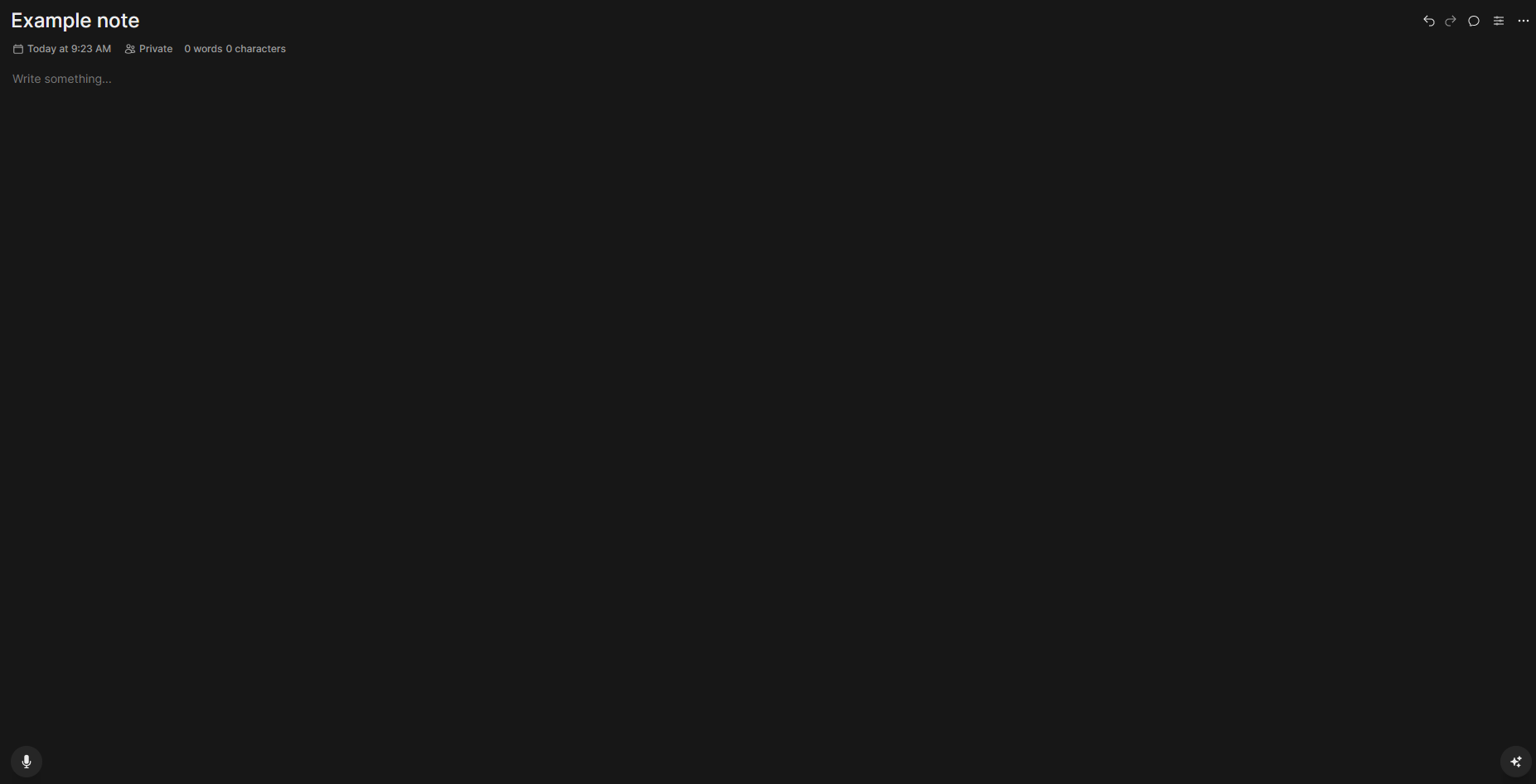
You can use notes to document and share thoughts or insights from meetings.
Creating a note
To create a first note, follow these steps:
1. Click on the  icon in the menu.
2. Click on the  to create a new note.
3. Write or format the content with the context menu or copy a text from the clipboard.
The note is saved and can be edited in the section.
Enhance notes
There are several features you can use while working with notes.
Access Control
You can set the access control for your notes, marking them as private, public, or releasing them to defined groups within your organization.
1. Once you have created your note, it is set to private by default.
2. To change the access rights, click on private. The following window will open :
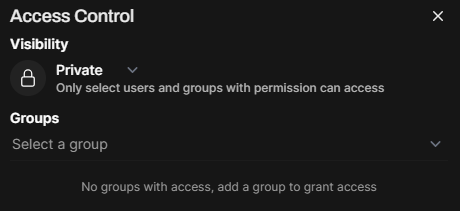
3. Choose the visibility of your note as public or release the notes to defined groups in your organization. Select a group from the dropdown menu.
Chat
You can use a chat to insert agent responses to your notes. Also, you can edit the note via chat. To use the chat feature, click on the  icon.
icon.
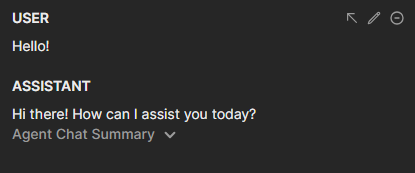
There are different options what you can do with the answers of the agent in the chat or your input.
| Icon | Description |
|---|---|
 |
Insert the answer of the agent or your input into the note |
 |
Edit the answer of the agent or your input and change the content of the note |
 |
Delete the answer of the agent or your input from the chat |
You can expand the Agent Chat Summary to see the number of inner messages, the total prompt tokens and the total completion tokens.
Keyboard shortcuts
There are many keyboard shortcuts to streamline your workflow and enhance your interaction within the application.
You can see the shortcuts by clicking on the and select 
Chat controls
To make your chat experience more personalized, go to the control  section. There you have the opportunity to enter a custom system prompt via text, valves or other advanced parameters. To get more information, just hover the mouse pointer above the desired setting.
⚠️ Important: Ensure that all configurations are set according to your privacy preferences to maintain control over your data and interactions.